
📱 Samsung Galaxy S26 Ultra eSIM Guide: Setup, Dual SIM and Travel Tips (2026)
📱 Galaxy S26 Ultra SIM Hardware at a Glance
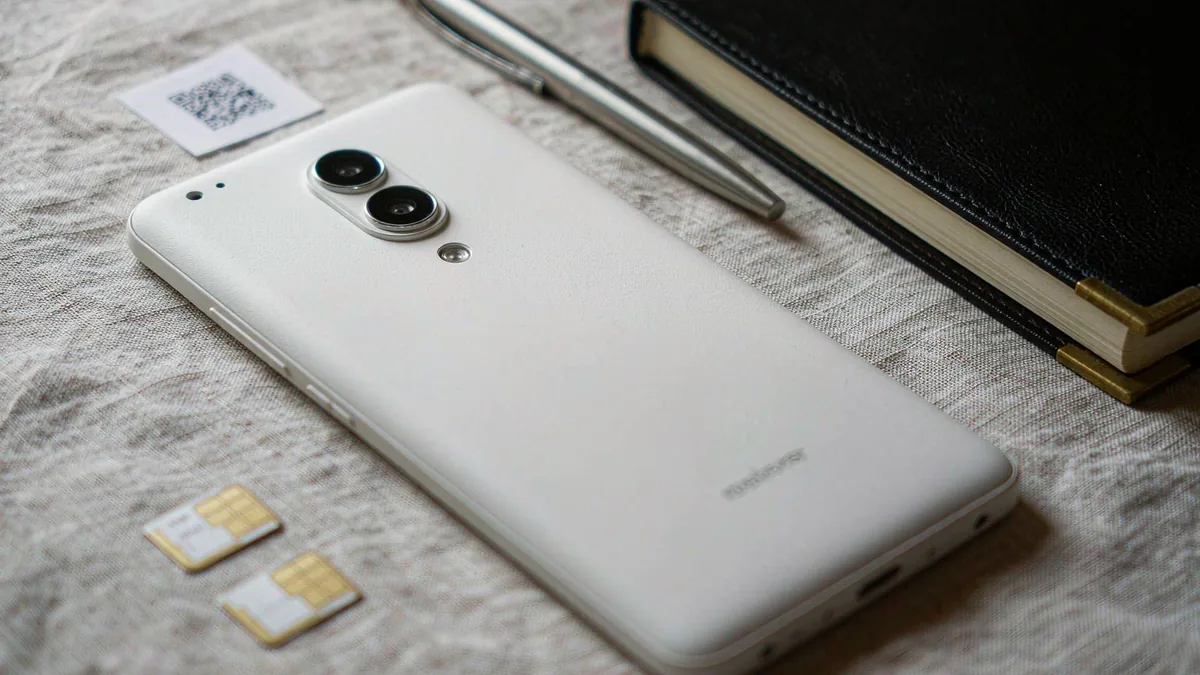
- The S26 Ultra supports dual nano-SIM cards plus eSIM, so you can combine two physical SIMs, one SIM + one eSIM, or two eSIMs.
- Samsung documents support for up to eight stored eSIM profiles on the S26 line, with two lines active at once.
- Unlike the iPhone Air, the S26 Ultra keeps its physical SIM tray in every market - it is not eSIM-only anywhere.
- Even mainland China versions of the S26 line support eSIM, a first for Samsung flagships in that market.
📱 Install a Travel eSIM on S26 Ultra: 5 Steps
- Buy your travel eSIM and open the delivery email on the phone while connected to Wi-Fi.
- Open Settings > Connections > SIM manager.
- Tap Add eSIM > Scan QR code from service provider and scan the code from your email.
- Confirm the install, then label the plan (for example "Tokyo trip").
- On arrival: enable the eSIM, turn on Data Roaming for it, and set Mobile data to the travel eSIM in SIM manager.

📱 Best Dual-SIM Combos for Travel on the S26 Ultra
Because the S26 Ultra supports three SIM modes, it is one of the most flexible travel phones available. Keep calls and SMS on your home line, set the travel eSIM as the Mobile data line, and leave Data Roaming enabled only on the travel eSIM - prepaid plans include roaming, so it costs nothing extra.
- Home nano-SIM + travel eSIM: the classic setup - your home number stays reachable, data flows over the travel eSIM.
- Home eSIM + travel eSIM: free the tray entirely; useful if you have already moved your home number to eSIM.
- Two travel eSIMs: for multi-region trips, for example a Europe plan and a UK plan active side by side.
💡 Quick Tips
- Install the eSIM on Wi-Fi before you fly - the profile download needs a stable connection and airport Wi-Fi is unreliable.
- Never delete a working eSIM profile to tidy up; deleted carrier profiles usually require the carrier to reissue them.
- If both lines appear but data will not switch, tap the eSIM name in SIM manager and re-confirm it as the preferred data SIM.
⚡ Pro Tips
- Restart the phone after activation if you see "Activation failed" - this clears most stuck provisioning states on Galaxy.
- Use the SIM manager toggle (not Airplane Mode) to switch lines in flight; Airplane Mode drops both lines at once.
📋 Summary
The Galaxy S26 Ultra is one of the most travel-friendly flagships: dual nano-SIM plus eSIM means you can mix SIM cards and eSIMs freely, store up to eight profiles, and never lose the safety of a physical tray. Install your travel eSIM on Wi-Fi before departure, keep your home number for calls, and switch data to the eSIM when you land.
Frequently Asked Questions
Does the Galaxy S26 Ultra support eSIM?
Yes - in all markets. It supports dual nano-SIM plus eSIM, so you can run SIM + eSIM or two eSIMs at the same time. Dial *#06# and check for an EID to confirm the eSIM chip is active.
Is the S26 Ultra eSIM-only?
No. Unlike the iPhone Air, the S26 Ultra keeps a physical SIM tray in every region. eSIM is an addition, not a replacement.
How many eSIM profiles can the S26 Ultra store?
Samsung documents up to eight stored eSIM profiles on the S26 line, with two lines active simultaneously - enough for a home line plus several saved travel plans.
Can I use two eSIMs at the same time on the S26 Ultra?
Yes. Dual eSIM is one of its three SIM modes, alongside dual nano-SIM and nano-SIM + eSIM.
Will my home number still work while using a travel eSIM?
Yes. Keep calls and texts on your home SIM or eSIM, set the travel eSIM as Mobile data, and turn off Data Roaming on the home line so it cannot incur roaming charges.


