
📱 iPhone Air eSIM Guide: The eSIM-Only iPhone, Setup and Travel Tips (2026)
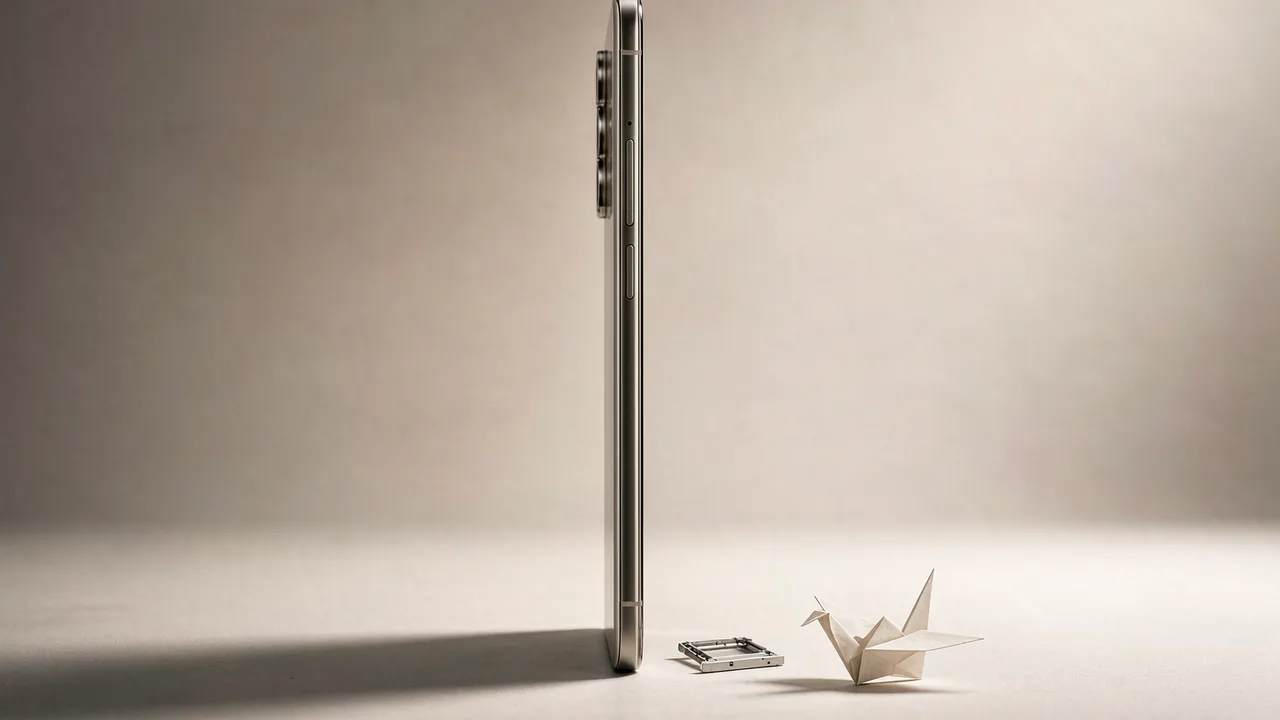
📱 iPhone Air: Apple's First Global eSIM-Only iPhone
- The iPhone Air ships without a physical SIM tray in every country - the same hardware worldwide.
- It measures 5.64 mm thick and weighs 165 g, which is why the SIM tray was removed entirely.
- It runs the A19 Pro chip and supports Apple's MagSafe battery accessory for up to 40 hours of video playback (27 hours on the internal battery).
- Every iPhone Air sold supports eSIM - there is no regional non-eSIM variant as with other iPhone models.
- Mainland China exception: the iPhone Air is sold there through China Unicom support only, but the hardware is still eSIM-based.
📱 eSIM Capacity: 8 Profiles, 2 Active
- The iPhone Air stores eight or more eSIM profiles on the device.
- Two lines can be active at the same time - for example home number + travel data.
- Profiles stay installed across trips; a Japan plan from spring still works on a return trip if the plan has not expired.
📱 Install a Travel eSIM on iPhone Air: 5 Steps
- Buy your travel eSIM and open the delivery email on the iPhone while on Wi-Fi.
- Open Settings > Cellular > Add eSIM.
- Tap Use QR Code and scan the code from the email, or use the activation link.
- Label the plan (for example "Seoul trip") and keep Default Line on your home number.
- On arrival: turn the eSIM on, enable Data Roaming for that line only, and set it as your Mobile Data line.
📱 Traveling eSIM-Only: What Changes
Without a tray, a paper SIM card bought at the airport is useless to you - every plan must arrive as a QR code or app-based eSIM. That makes preparation essential: install your travel eSIM on Wi-Fi before departure, confirm it shows in Settings > Cellular, and screenshot the QR code as a backup. If a destination airport sells eSIMs with instant QR delivery, you can still buy on arrival, but the reliable path is installing before you fly.
💡 Quick Tips
- Screenshot the QR code before scanning - if you ever need to reinstall, you can re-scan from Photos.
- Never delete a working eSIM profile to clean up; deleted carrier profiles often require the carrier to reissue.
- Keep Data Roaming off on your home line and on for the travel eSIM - that combination prevents roaming charges and keeps data working.
⚡ Pro Tips
- Install two travel eSIMs before a multi-country trip and toggle between them in Settings > Cellular - no need to buy at each border.
- If the eSIM shows No Service after landing, toggle Airplane Mode first, then verify Data Roaming is on for the travel line.
📋 Summary
The iPhone Air is eSIM-only worldwide - no tray, no regional SIM variants. With eight stored profiles and two active lines, it handles travel well if you prepare: install your travel eSIM on Wi-Fi before departure, keep your home number for calls and codes, and switch data to the eSIM when you land. Without a tray, airport SIM cards are not an option, so plan ahead.
Frequently Asked Questions
Is the iPhone Air eSIM-only in every country?
Yes. Unlike other iPhone models with regional variants, the iPhone Air has no SIM tray anywhere in the world.
Can I use a physical SIM card with the iPhone Air?
No. There is no tray and no SIM reader. All plans - home and travel - must be eSIMs.
How many eSIMs does the iPhone Air support?
It stores eight or more eSIM profiles and can keep two lines active at the same time, matching the iPhone 17 series capability.
Does the iPhone Air work in mainland China?
Yes - it is sold there with China Unicom support. The hardware is the same eSIM-only design as everywhere else.
What if I land without an eSIM installed?
You need any Wi-Fi or a borrowed phone's hotspot to receive and scan the QR code. Airports increasingly sell instant-QR eSIMs, but buying before departure is the dependable route.


